Stock GaggiMate and BetterMate, screen by screen
Every screen of the round display and the web app, stock on the left and BetterMate on the right. Both are captures of real firmware running in the simulator, not mock-ups.
Round display
Standby
Display: StandbyWhat the machine shows while it waits for you.
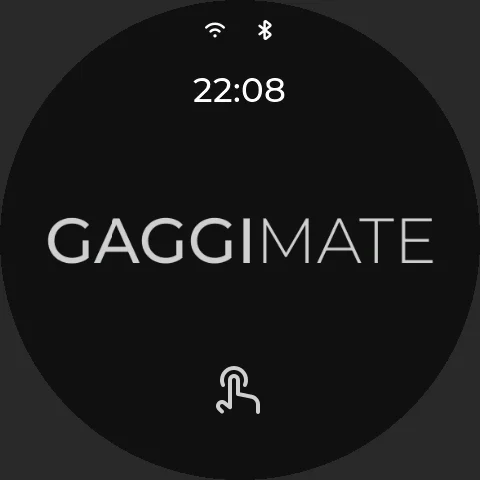
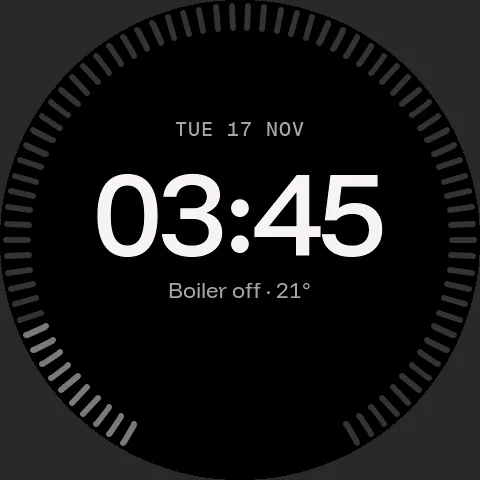
What changed
- The clock is the one large reading. The date sits above it and one line below says what happens next: Boiler off · 21°, or Wakes at 06:30.
- A faint ring shows how much heat the boiler still holds, so you can tell at a glance whether it is still warm.
- While the machine connects, updates or autotunes, a small comet runs round the ring instead of a sentence.
- On AMOLED panels, after 30 s only the clock stays lit, and it moves 2 px each minute to protect the screen.
Still there
- Tap to wake.
- Errors, updates, autotune and a version mismatch still force Standby, and the reason is still shown.
- An update that is waiting shows its glyph at the top of the ring.
Brew
Display: BrewThe screen you see most: the profile is chosen and the boiler is heating.
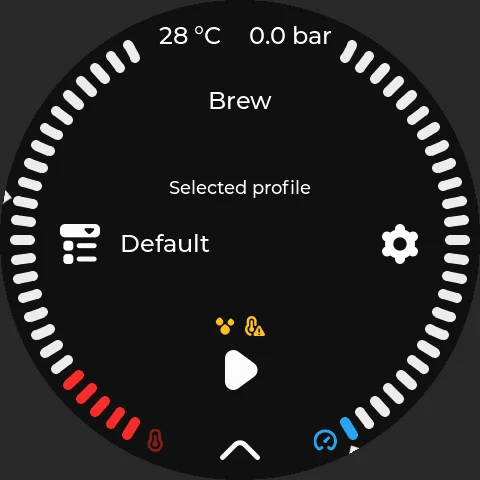
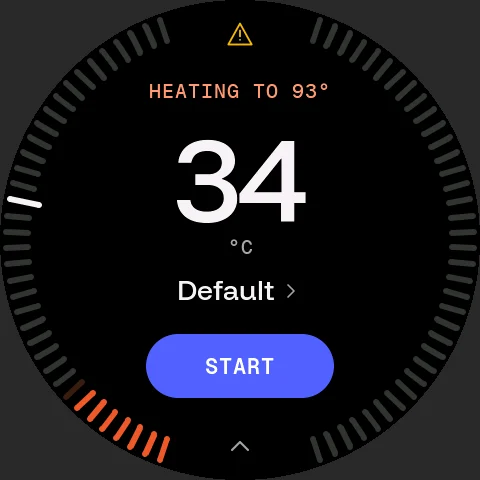
What changed
- Boiler temperature is the one large reading. HEATING TO 93° says in words what the stock screen said with a blinking icon.
- Up to six warning icons become one glyph at the top of the ring. Tapping it lists each warning in a sentence.
- The play icon is now a labelled START pill.
- Pressure stays on the rim as ticks, and only becomes a number while a shot is brewing.
- Tap the profile name to change profile. The separate list and gear buttons are gone.
Still there
- Hold START to flush. The flush ends when you lift your finger, as before.
- With a scale connected, its weight shows under the profile; tap that line to tare.
- Starting with an error-level warning still asks first: Start anyway?
- Target notches on both halves of the ring, and a single temperature ring without a pressure sensor.
Adjust a profile
Display: Menu and sheetsChanging the temperature, pressure or time of the current profile without leaving the machine.
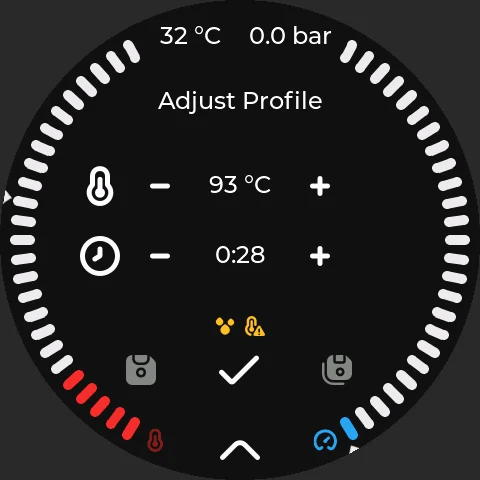
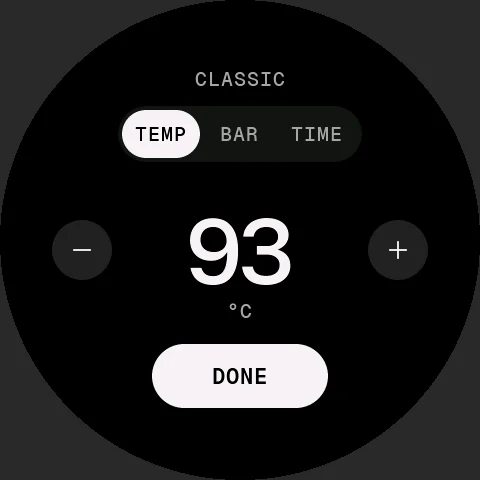
What changed
- One value at a time, large, between 60 px minus and plus discs. A row above picks which: TEMP, BAR or TIME.
- The title says UNSAVED as soon as anything has changed.
- Three unlabelled disk icons become a sheet with three named choices: SAVE, SAVE AS NEW and USE ONCE.
Still there
- All three outcomes: save, save as a new profile, or use the change once without saving.
- Removing a profile's weight target, so the shot stops by time.
- Minus and plus repeat while you hold them.
Pulling a shot
Display: ShotThe shot is running.
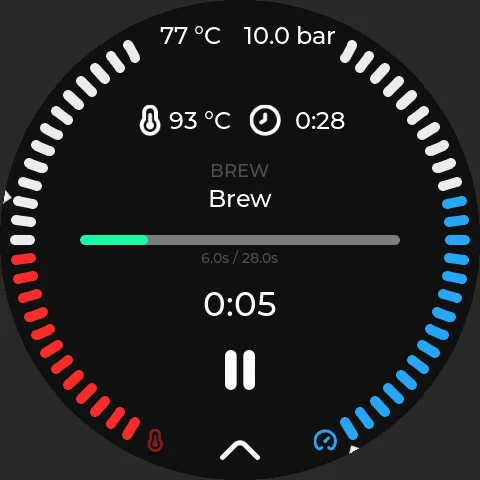
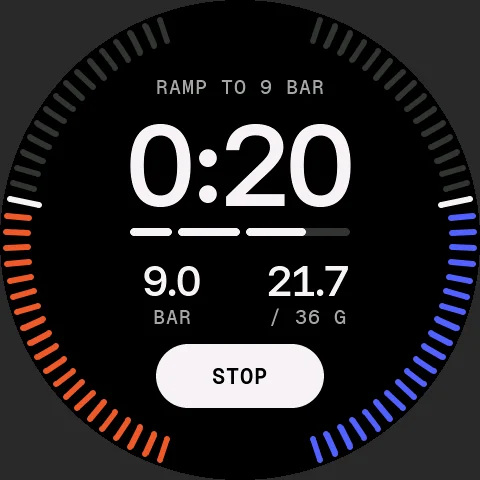
What changed
- Elapsed time is the large reading. The running phase names itself at the top: RAMP TO 9 BAR.
- One bar per phase replaces a single progress bar, so you can see where you are in the whole shot.
- Pressure and weight become two readings you can see from across the kitchen. Without a scale the second reading is boiler temperature.
- The pressure ring gets a notch at the target of the phase that is running.
Still there
- STOP ends the shot at any moment.
- The shot ends by itself when the profile finishes.
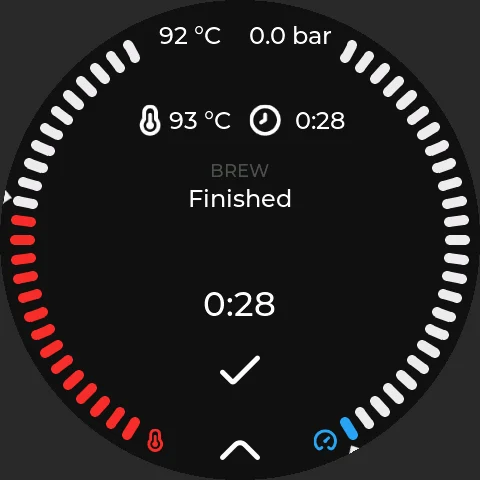
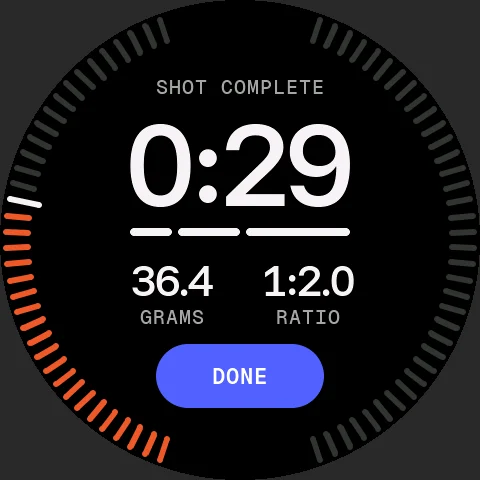
Shot complete
Display: ShotThe pump has stopped. What did you get?
What changed
- The final time is the large reading, with the yield and the brew ratio under it.
- The ratio appears when the profile has a dose.
Still there
- The screen waits for DONE, so the result stays until you have read it.
- The final weight, when a scale is connected.
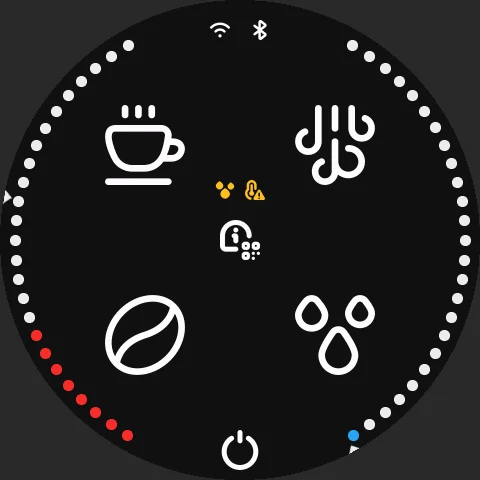
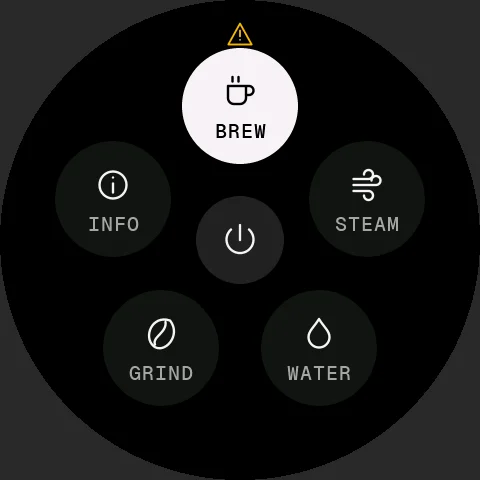
Moving between modes.
What changed
- Every mode disc carries its name.
- The mode you are in is drawn as a filled disc, so you always know where you are.
- Standby moves to the power disc at the centre.
Still there
- Grind appears only when a grinder is configured.
- Information is one tap away.
- Warnings still show at the top.
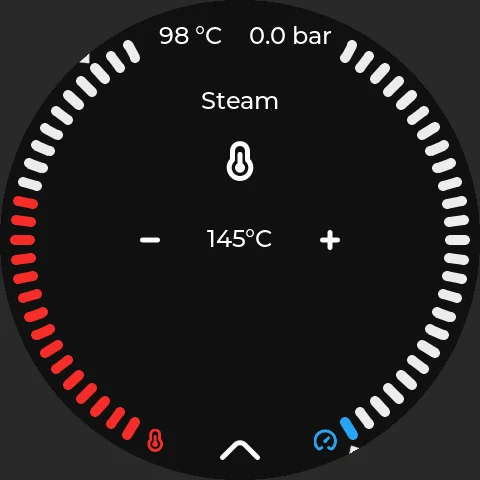
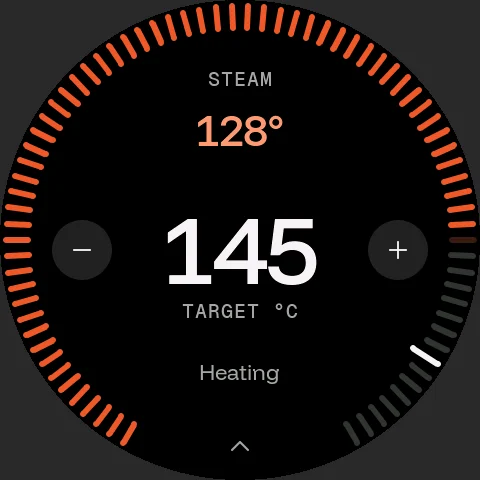
Heating up for milk.
What changed
- The target is the large reading between minus and plus. The live temperature sits above it and turns orange while heating.
- A status line says what the boiler is doing: Heating, Ready to steam, or Paused after 10 minutes.
- The ring fills towards a notch at the target.
Still there
- No start button: as on stock, the controller starts steaming within 5° of the target.
- The 10 minute safety limit, set by the controller.
Hot water
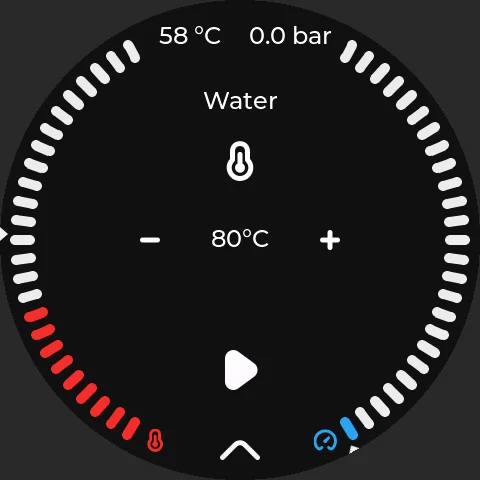
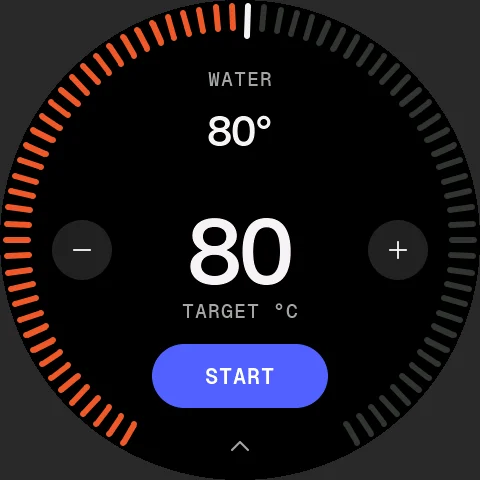
Display: Steam, Water, GrindWater from the group or the wand.
What changed
- The same layout as Steam, with a START pill that turns into STOP.
- The millilitres pumped show while it runs, when the controller reports them.
Still there
- The target temperature, saved as the water temperature setting.
- The 2 minute safety limit.
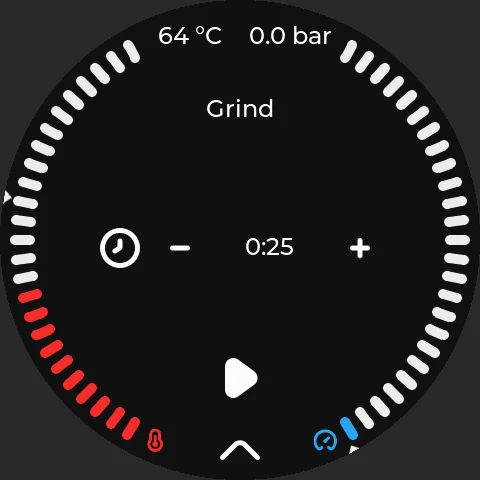
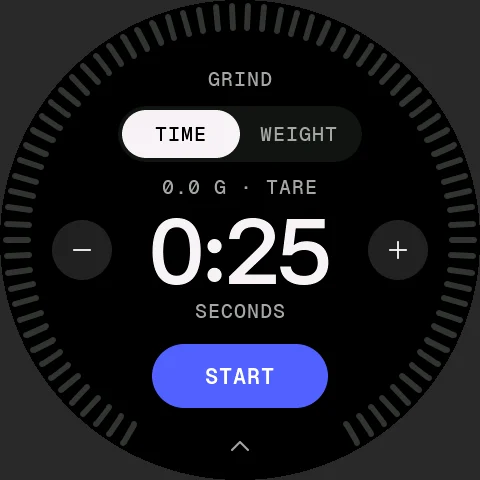
For machines with a grinder wired to the controller.
What changed
- Grinding by time or by weight is a labelled row, not a tap on an icon.
- The ring shows progress against the target while it grinds.
- Minus, plus and the row step aside while grinding, and the elapsed time takes their place.
Still there
- Grind by weight with a scale, falling back to time when the scale drops out.
- Tare from the weight line.
Choosing a profile
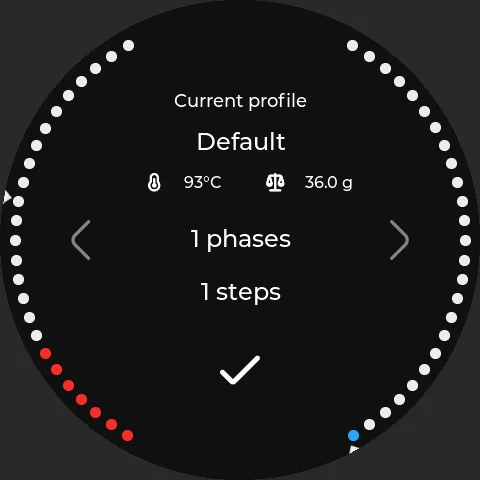
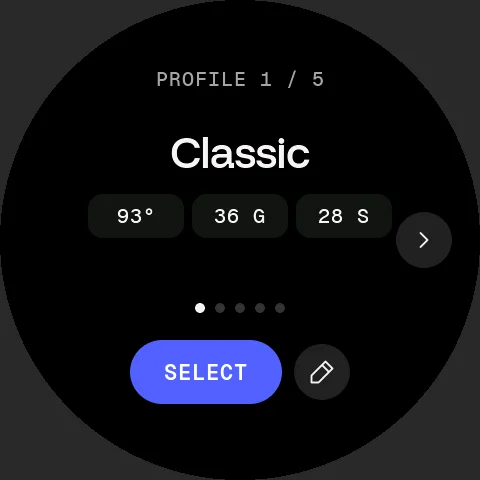
Display: Menu and sheetsSwapping the profile you are about to pull.
What changed
- The profile's name is large, with its temperature, yield and time as three cards under it.
- Page dots show where you are among your favourites.
- A pencil disc beside SELECT opens Adjust for that profile.
Still there
- Swipe, or use the arrows at the edges, to move between favourites.
- The current profile comes first.
Information
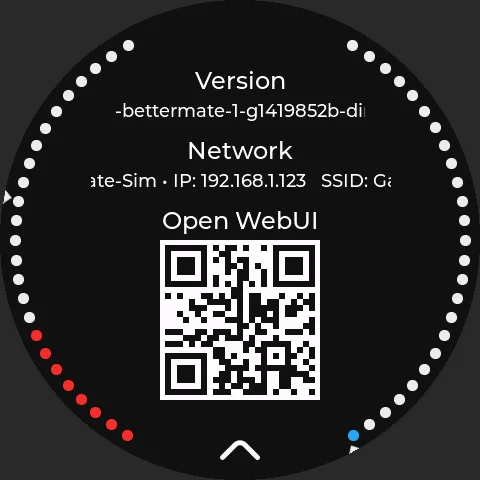
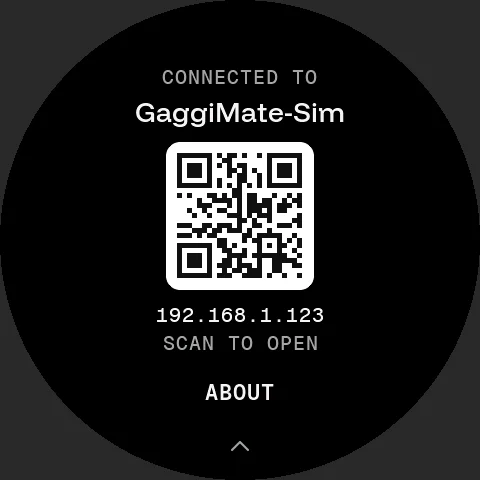
Display: Menu and sheetsFinding the web app from your phone.
What changed
- The QR code sits on a white card in every theme, so phone cameras read it easily.
- The network name and address no longer run off the edge of the circle.
- Version details move behind ABOUT.
Still there
- The QR code in both network modes: open the web app, or join the machine's own Wi-Fi.
Web app
Dashboard on a desktop
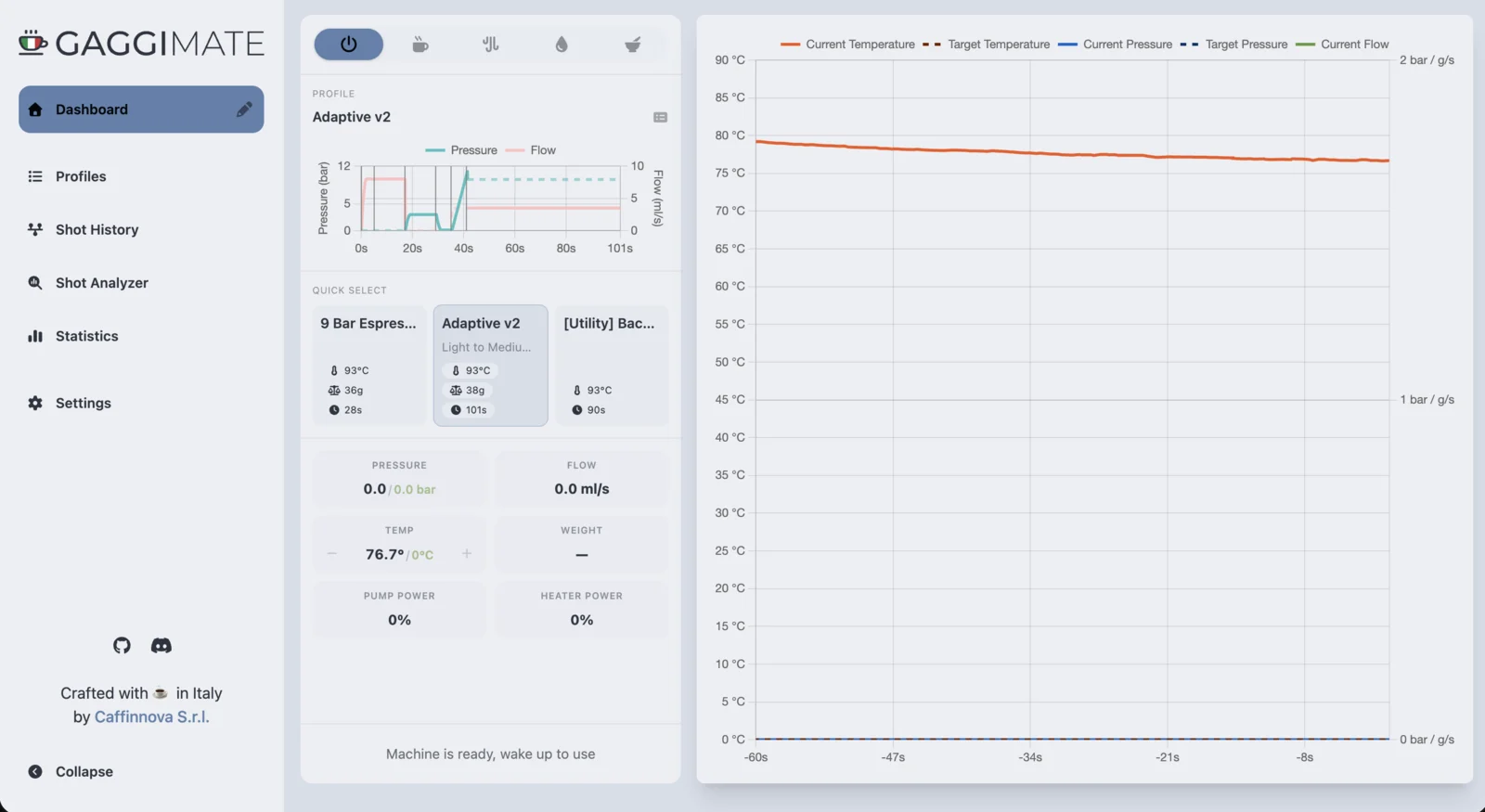
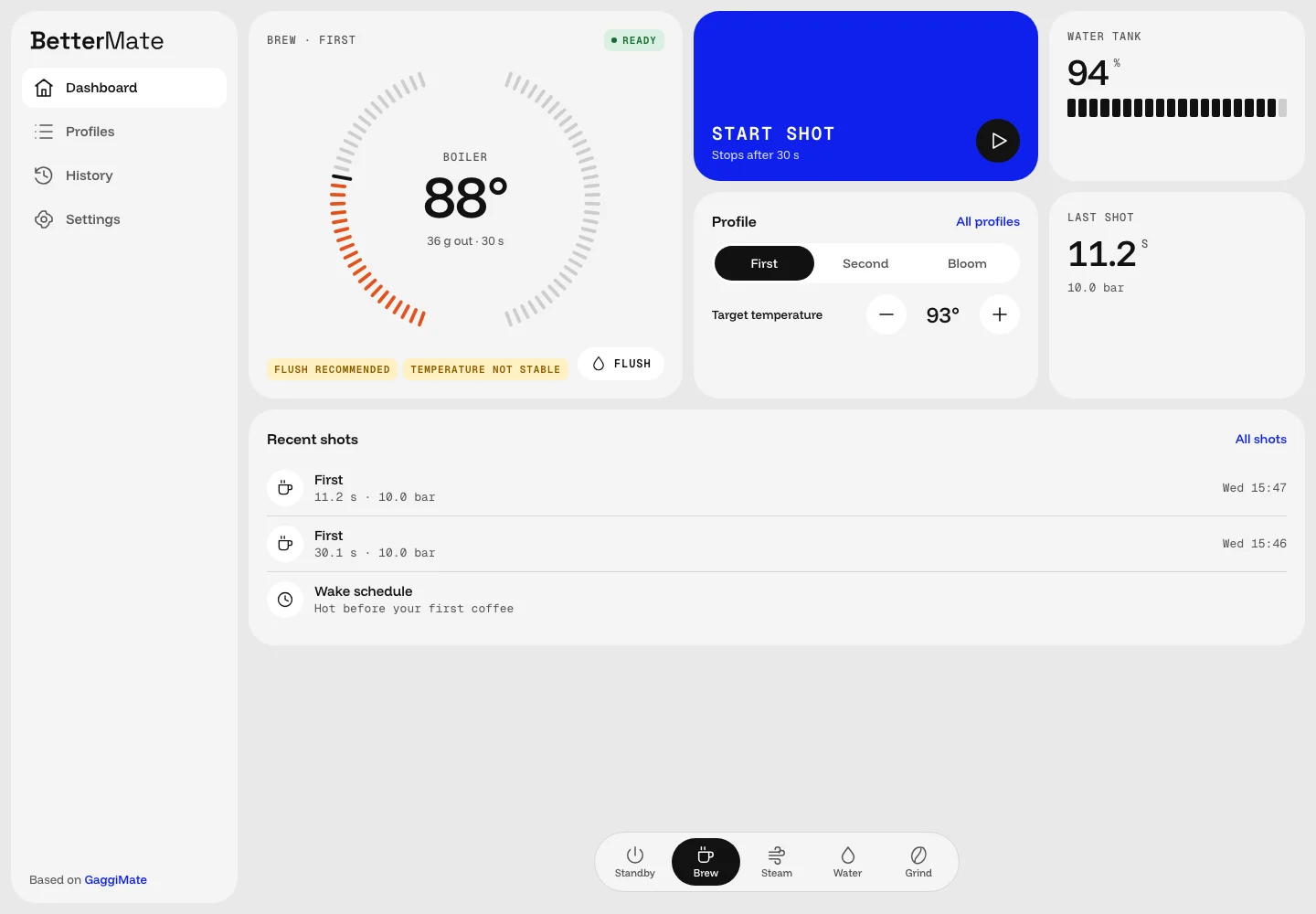
Web: desktop dashboardThe web app the machine serves, at full width.
What changed
- A dial draws the boiler exactly as the machine's own screen does, with a word for its state: READY, HEATING.
- The next thing you can do is one blue banner, START SHOT, with what it will do under it: Stops after 30 s.
- Warnings are named chips (FLUSH RECOMMENDED), not colours you have to decode.
- Modes move to one labelled bar at the bottom. While a shot runs the other modes lock and say why.
- Six pages become four. Analyzer and Statistics now open from History.
Still there
- Advanced view brings back every reading with its target, the live chart and the profile curve.
- The REST and WebSocket API are unchanged, so anything that talks to your machine keeps working.
Dashboard on a phone
Web: phone dashboardWhere most shots are started from the web app.
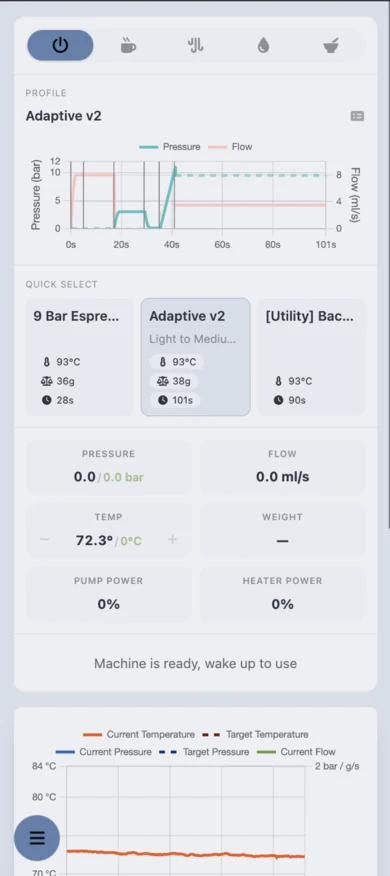
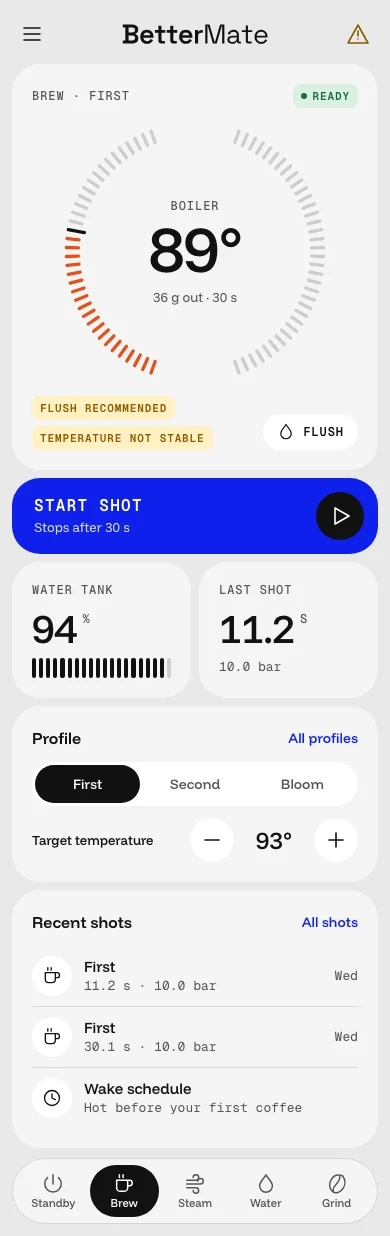
What changed
- The dial and START SHOT come first, so the daily shot needs no scrolling.
- The mode bar floats at the bottom within reach of your thumb, with a word under every icon.
- A warning button appears in the top bar only while a warning exists.
- Every page works down to 320 px wide without sideways scrolling.
Still there
- Favourite profiles, one tap each.
- Target temperature from the dashboard.
Navigation on a phone
Nav and top barGetting to profiles, history and settings.
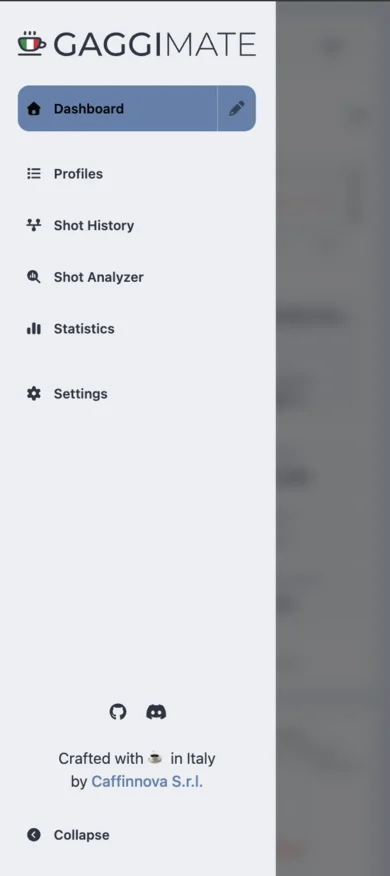
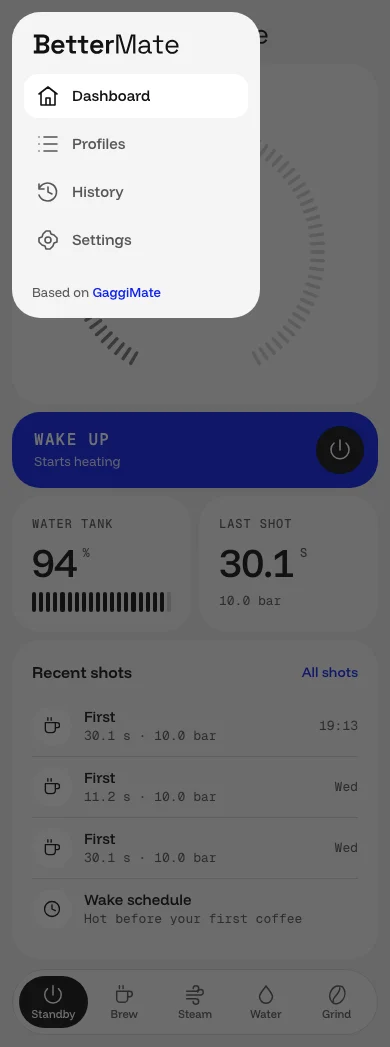
What changed
- Four pages instead of six. Shot Analyzer and Statistics are links at the top of History.
Still there
- Every stock page is still there.
- The GaggiMate credit stays in the navigation.